Troubleshooting#
Touch sensing#
The Enody configuration tool can be used to troubleshoot touch sensing. The Touch Sensor Data section shows live readings from the EP01 touch sensor and can help confirm whether the sensor is functioning as intended.
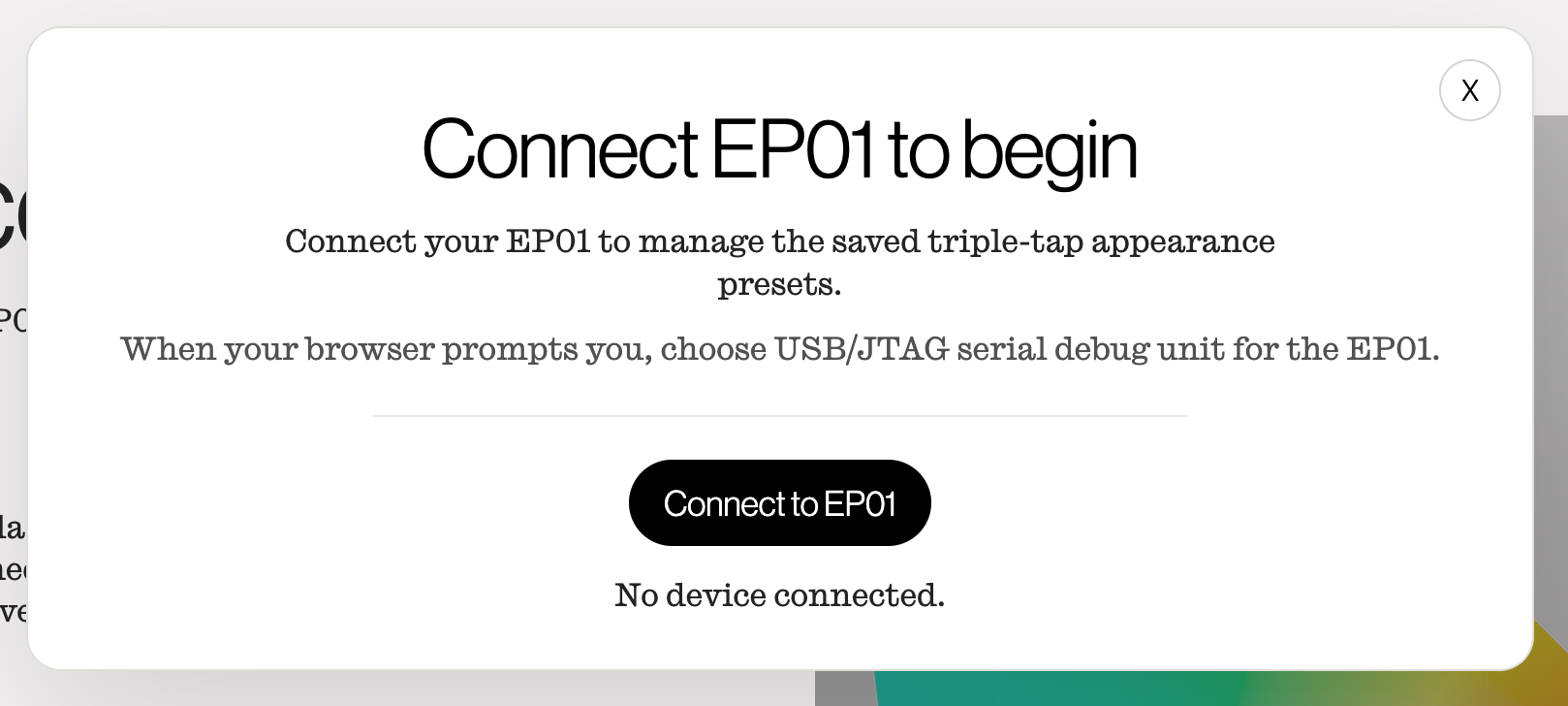
- Open the Enody configuration tool and connect your EP01 over via the USB-C port. The configuration tool must be opened in a WebSerial supporting browser, such as Mozilla Firefox or Google Chrome.
- If the firmware on your EP01 is not the most recent version, a prompt will display allowing you to update to the most recent firmware. Your EP01 must be running firmware
v0.2.2or newer to troubleshoot touch sensing.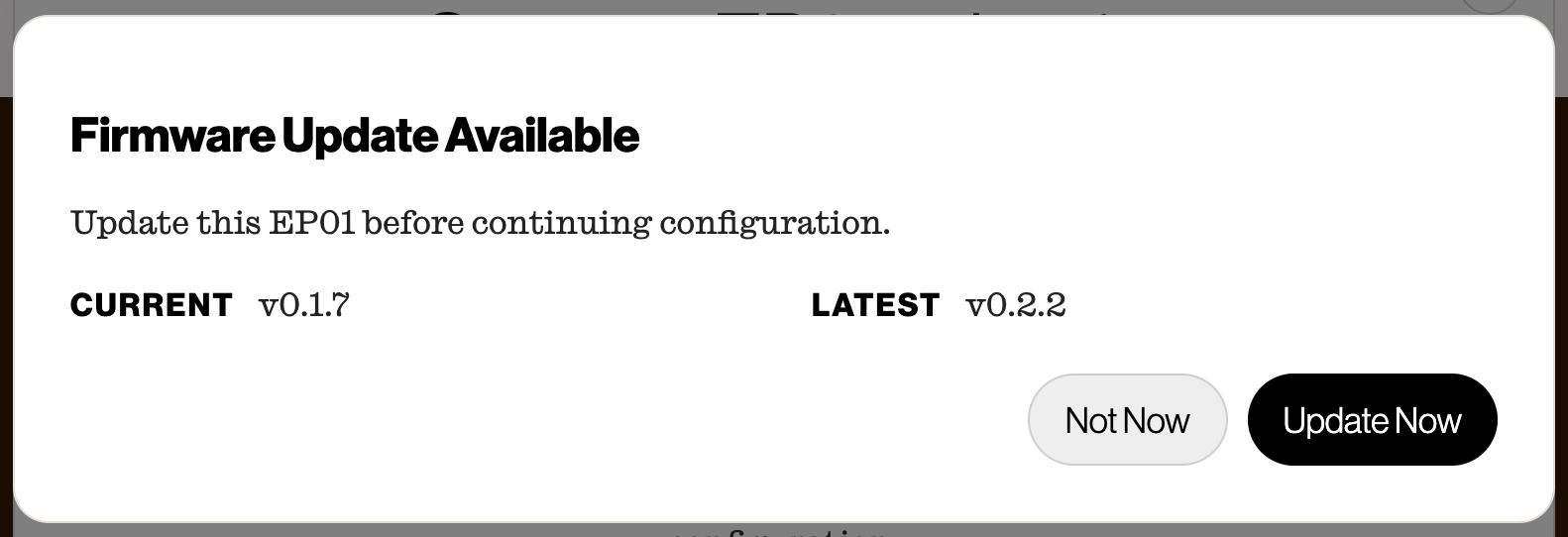
- Scroll down to the Touch Sensor Data section of the configuration tool.
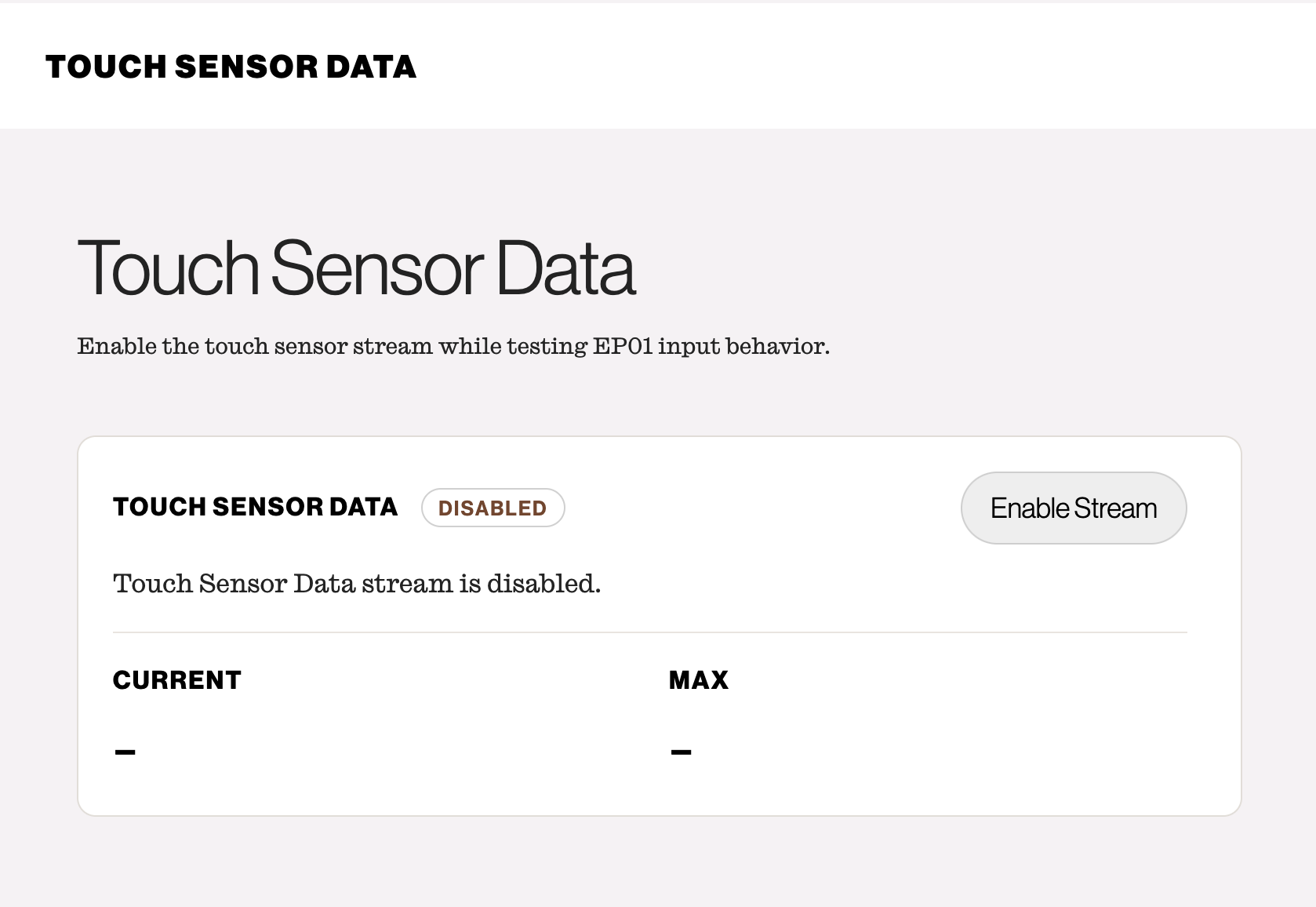
- Select Enable Stream.
- Watch the Current and Max readouts update as sensor data arrives.
- Touch the sensor and confirm the value rises above
100. - Release the sensor and confirm the value settles around
60at steady state.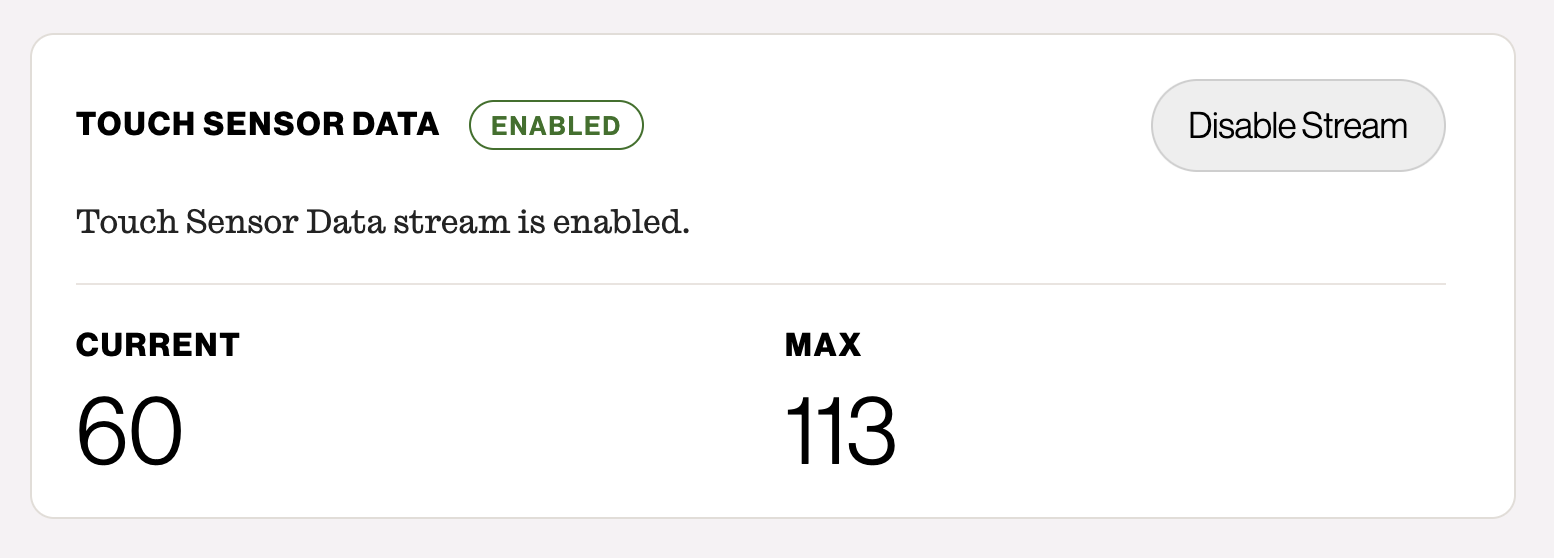
- Select Disable Stream when finished.
If readings do not appear, confirm the firmware version shown in the system information section and try disconnecting and reconnecting EP01.