Select Color Presets#
EP01 stores appearance presets that the lamp rotates through when triple tapped. The configuration tool lets you preview, save, reorder, and remove those presets.
Preview a color#
- Connect EP01.
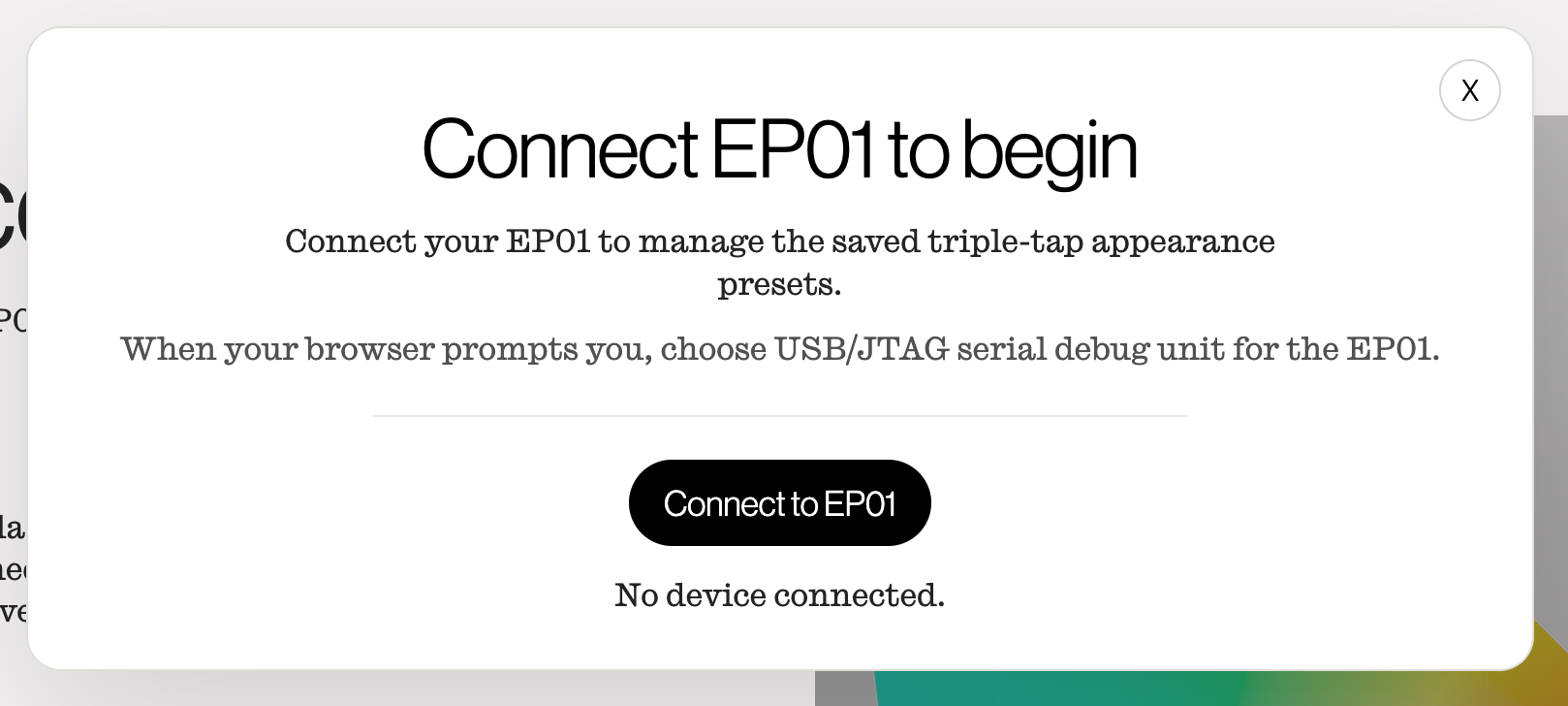
- Navigate to the Appearance Presets section of the configuration tool.
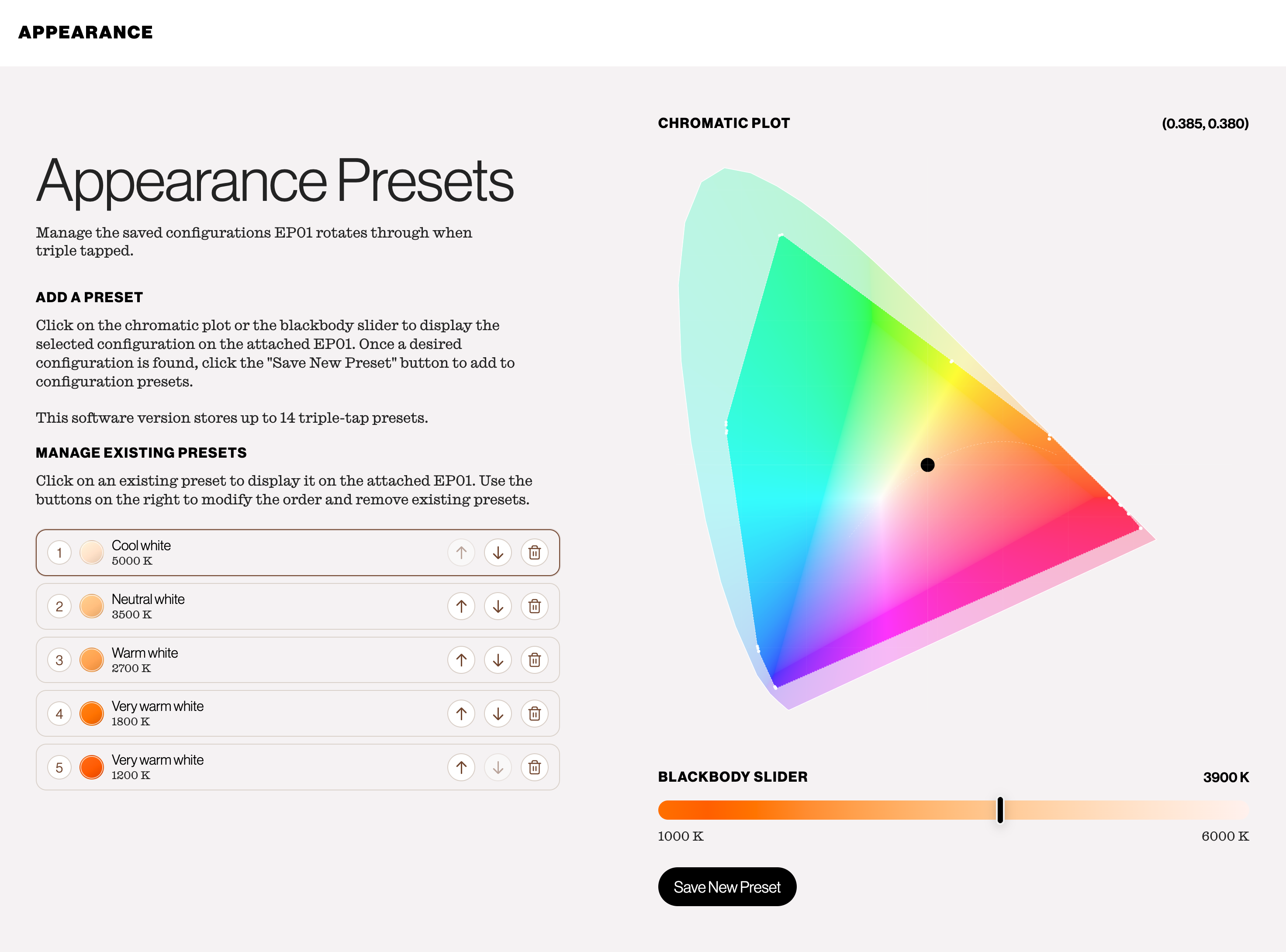
- Use the Blackbody Slider to choose a warm or cool white color temperature.

- Or click the Chromatic Plot to choose a chromaticity point.
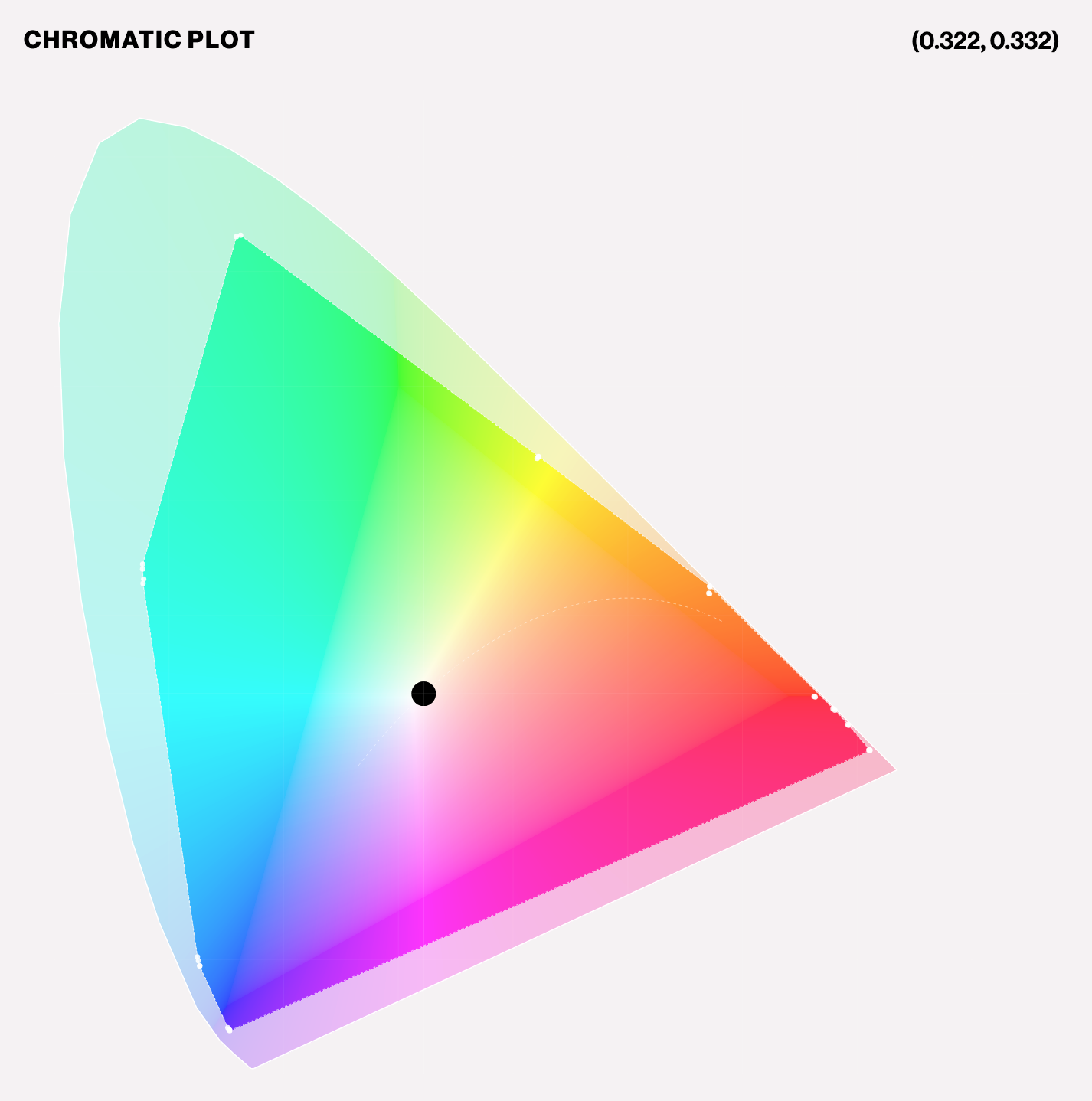
The selected color is previewed live on the connected EP01.
Save a preset#
- Preview the color you want.
- Select Save New Preset.
Manage saved presets#
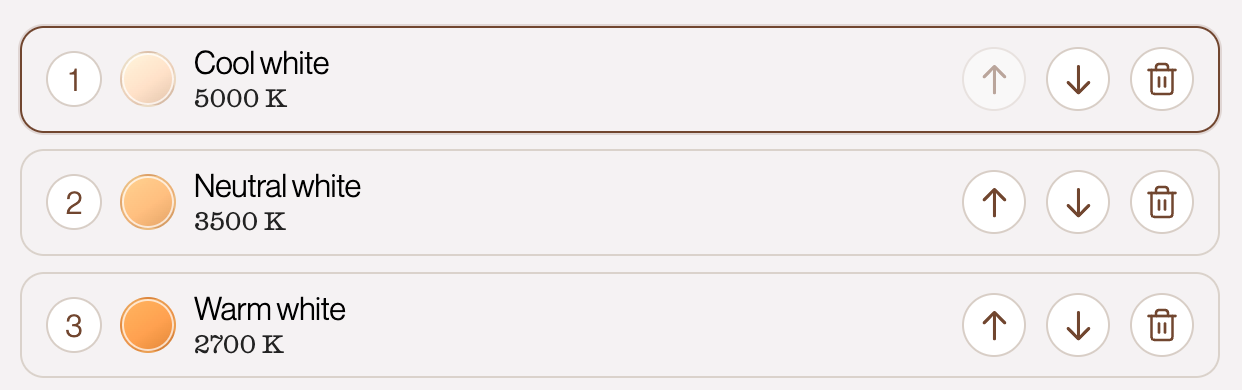 1. Select an existing preset to preview it.
2. Use the up and down controls to change its triple-tap order.
3. Use the trashcan button to delete a preset.
1. Select an existing preset to preview it.
2. Use the up and down controls to change its triple-tap order.
3. Use the trashcan button to delete a preset.
The tool writes preset changes back to EP01 as you make changes.